How To Restore Your Website Files, Databases or Emails in cPanel Using JetBackup
 By
JetBackup5 is our powerful backup and restore tool. It allows us to take daily incremental backups of all sites stored on our servers and provide clients with a simple and intuitive interface to restore their account data.
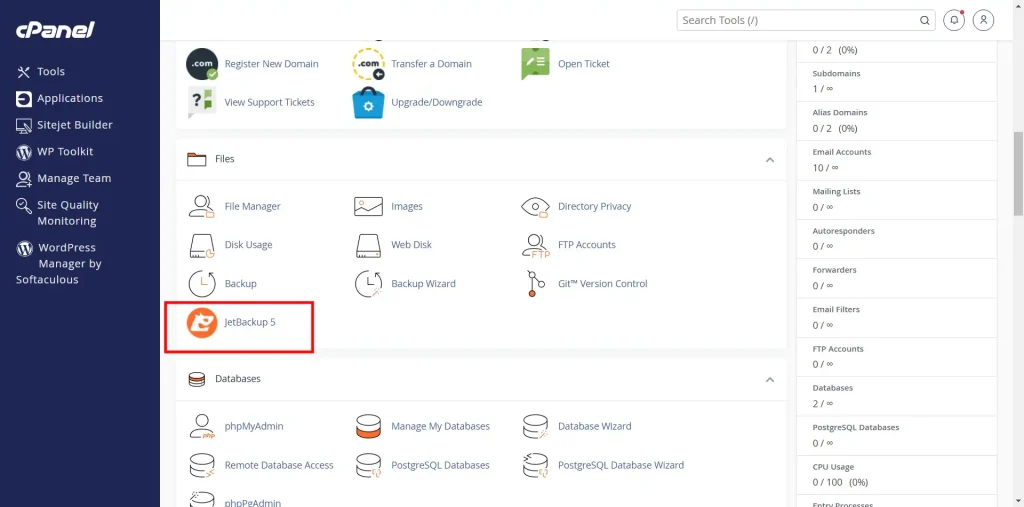
Step 1: Log in to your cPanel account and navigate to the Files section, then open the JetBackup 5 module
Step 2: Head over to the Restore & Download menu
On the left-hand navigation menu click the highlighted icon. Wait a few seconds and you will be presented with the available backups of your account.
Select the date of the full backup you would like to restore from and click Restore. This will restore everything in your cPanel account.
If you would like to restore just a portion e.g Email Account, Database, Folder etc, as opposed to the entire cPanel, proceed to step 3 below.
Step 3: Customizing Your Restoration (optional)
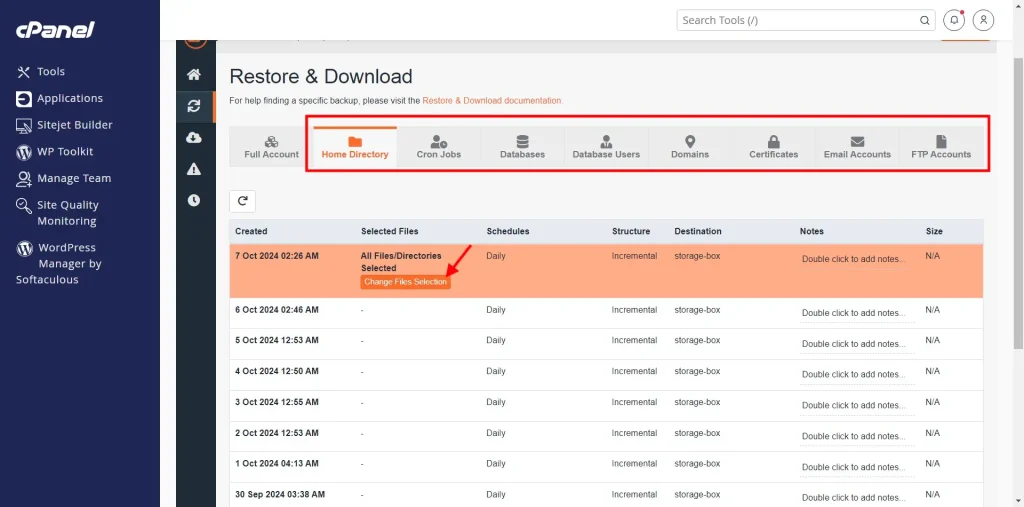
Choose what you would like to restore from the top toggle, then pick the date and click on Change Files Selection.
Once done with customizing what you would like to restore, click on the Restore button and proceed to the final step.
Step 4: Confirm the items you want to restore and click on Restore Selected Items
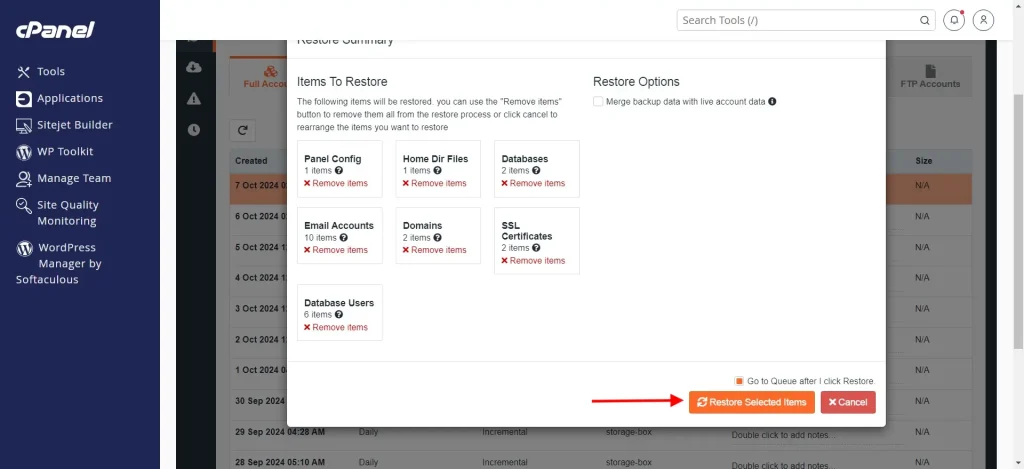
Please note that it is not possible to merge emails from a backup with an email account’s current emails, restoring this will overwrite any emails currently within the email account.
If you require any assistance in restoring your account or files, feel free to raise a Support Ticket from the Client Area.